KGC Task Week -
Scoring
Scores will be calculated
using the BGA Ladder (but not
uploaded to the Ladder – if you want to have your flights on the Ladder you
will need to do that yourself)
For formulae used see section 12 of: https://bgaladder.co.uk/Rules.asp NOTE: If you miss/don’t reach 1 TP then the ladder is
still generous on the score awarded
·
CLUB
GLIDERS – Downloading
IGC Fles: BEFORE plugging a USB stick into the console of any CLUB
glider make sure there is NOT a file called flarmcfg.txt – this WILL
mess up the FLARM configuration.
·
To
facilitate scoring: IGC files should be submitted using: https://trevargee.hopto.org/KGC-TaskWeek.
Guidance on how to use this
is below.
·
This should be
done by 19:00 on the day – otherwise it will not be included in the
scores presented at the next day’s briefing, possibly missing out on a “prize for the day”
·
If you enter your
flight on the BGA Ladder the IGC file MUST still be submitted using the link
above – I need to make sure that ALL the flights are scored in the same way
NOTE: As long as the “Task Description” gives enough
information to determine which task was attempted there is NO NEED to
have a declaration in your logger – I will add the declaration before scoring
Polite
Request
Private owners please check your logger includes the correct
information (or, at least, does not have the wrong data) for:
·
Glider Type
·
Glider ID
·
Competition
Number
Incorrect information, in the
IGC files, will confuse my little brain (last year I dealt with a couple of
Badge Claims where this was the case)
Declarations:
·
Not declaring
your flight (in your logger) is NOT a problem as long as, when
you upload your IGC file, the “Task Description” is sufficient for me to
identify the task attempted
·
CLUB GLIDERS: If
you want to upload a declaration to the FLARM, fitted to a CLUB glider:
o
Make sure you
know what you are doing
o
Do NOT change
anything apart from P1 Name, P2 Name and task details (failure to observe this
WILL incur the wrath of the CFI)
o
Make REALLY sure
you know what you are doing
Submitting
IGC Files
·
Open: https://trevargee.hopto.org/KGC-TaskWeek
·
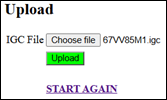
Select the file
to be uploaded and press “Upload”
·
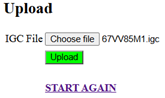
Ensure the
following are entered correctly:
o
P1 Name: Defaults to whatever is in
the IGC file
o
P2 Name: If in a 2 seater – defaults
to whatever is in the IGC file
o
Team Name: If sharing a glider and
combining scores (e.g. “Team 220”)
o
Task Description Something useful – e.g. “Task A – 22
Aug - 300k” (You can make it longer than the box)
Click
“Confirm Details”
·
Check the Summary
that is presented:
If
anything needs changing PLEASE start again (click “UPLOAD ANOTHER FILE”)
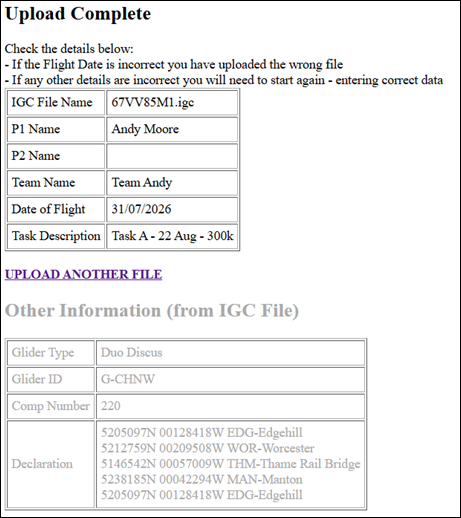
YES, I know – the Task Description says “22 Aug”, but the flight
was on 31 July
CHECKING & SCORING
Declaration:
If the IGC file does not contain the correct declaration (as notified when the file was uploaded) then I will “hack” the IGC file so that it contains the appropriate information.
NOTE: This will make the file ineligible
for uploading to the BGA Ladder
Checks:
The following checks will be made:
· Finish line crossed above minimum height (doesn’t apply to ridge run tasks) – e.g. 700’ (https://igcviewer.bgaladder.net/)
· No airspace / NOTAM infringements (https://trevargee.hopto.org/ParseIGC/)
Scoring:
The flight will be scored using the BGA Ladder (https://bgaladder.net/Calculator)
· Handicap applied will be whatever the BGA Ladder thinks appropriate
· 0.5km barrels will be enabled/disabled depending on task set
· Height loss penalties will be applied.
Height loss between Start and Finish must be:
o <1% for tasks of under 100km
o <1000m for tasks over 100km
Appeals:
Any appeals, against scores awarded, will be decided by the Committee (probably CFI & Task Setter).